
Summary |
This article explains how Quick Search works: how to open it, search for an item across your entities, read the results and switch entity.
Opening Quick Search
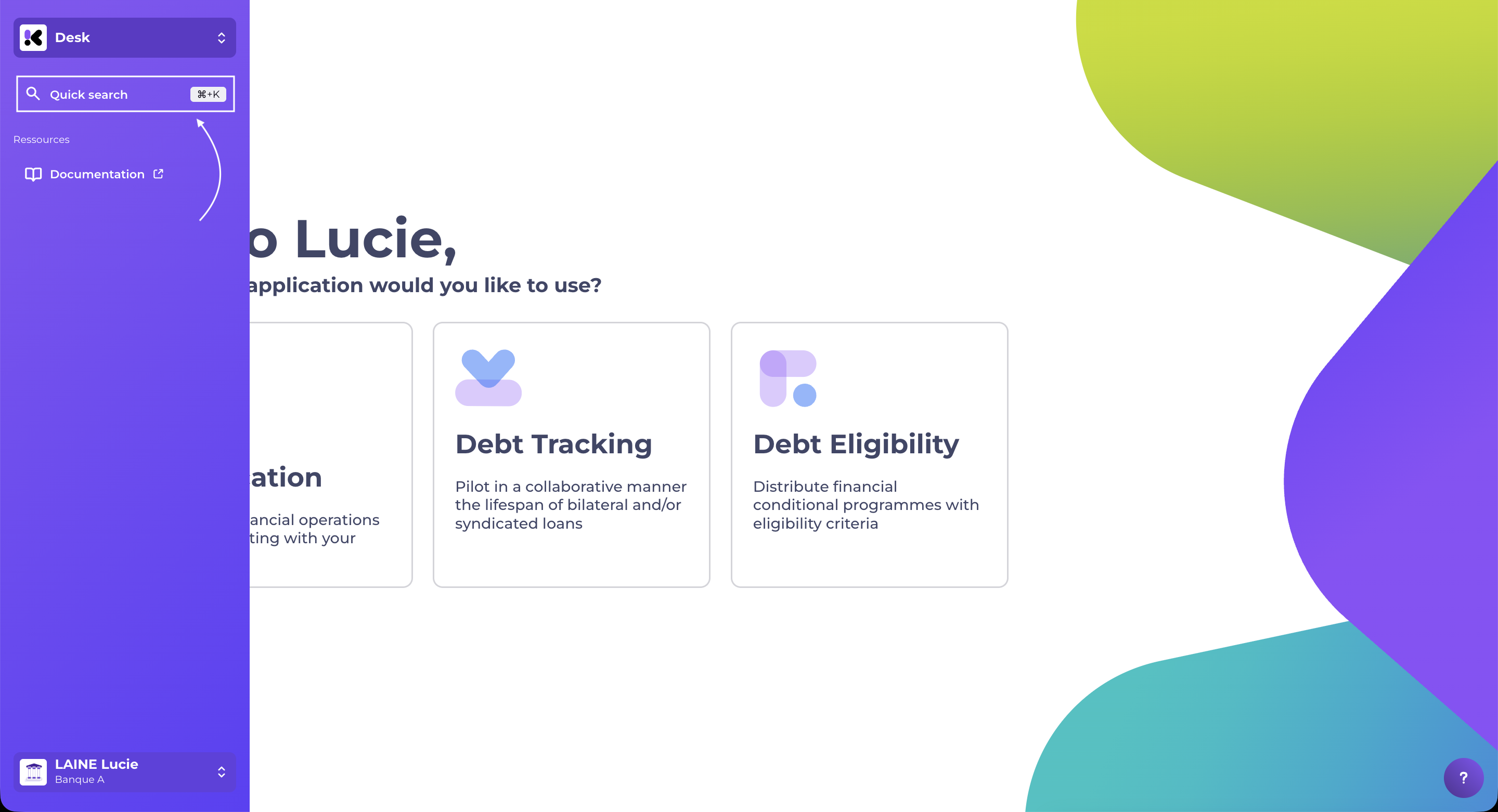
Quick Search opens on any logged-in page, once an entity has been selected, using the keyboard shortcut ⌘K on Mac and Ctrl+K on other systems. Both combinations work regardless of your operating system.
The sidebar has a "Quick Search" line, placed beneath the product switcher, on any page that displays the navigation, including the hub. Clicking this line opens Quick Search.
Searching for an item
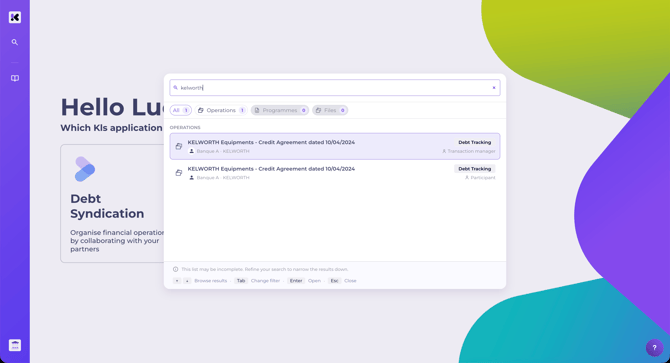
Type the name of the transaction, programme or file you're looking for. The search starts once 3 characters have been entered.
Results are grouped into categories:
-
My entities: the companies you're attached to, with the active entity identified. This category only appears if you belong to more than one entity
-
Transactions: Debt Tracking and Debt Syndication transactions, searched across all your entities at once.
-
Programmes: Debt Eligibility programmes.
-
Files: eligibility files, searched by their name or by the name of their beneficiary.
A filter bar beneath the search field restricts the search to one or more categories. With nothing ticked, the search covers everything your entities give you access to.
Choosing and opening the right result
Each result line shows the name of the item, the entity that holds it along with its logo, and the relevant product. For transactions, the line also shows the role under which it will be opened.
The same transaction can appear on several lines: once per entity that has access to it, and once per role when your account is attached to it under two roles at once. The role shown on the line indicates which hat you're opening it under — the Tab key cycles through the categories if you'd rather browse results by group.
A click, or the Enter key, opens the selected item. If it belongs to the active entity, it opens directly. If it belongs to another of your entities, Quick Search first switches to that entity, then opens the item under the role shown on the line. The navigation stays displayed during the switch; only the page content waits.
Switching entity
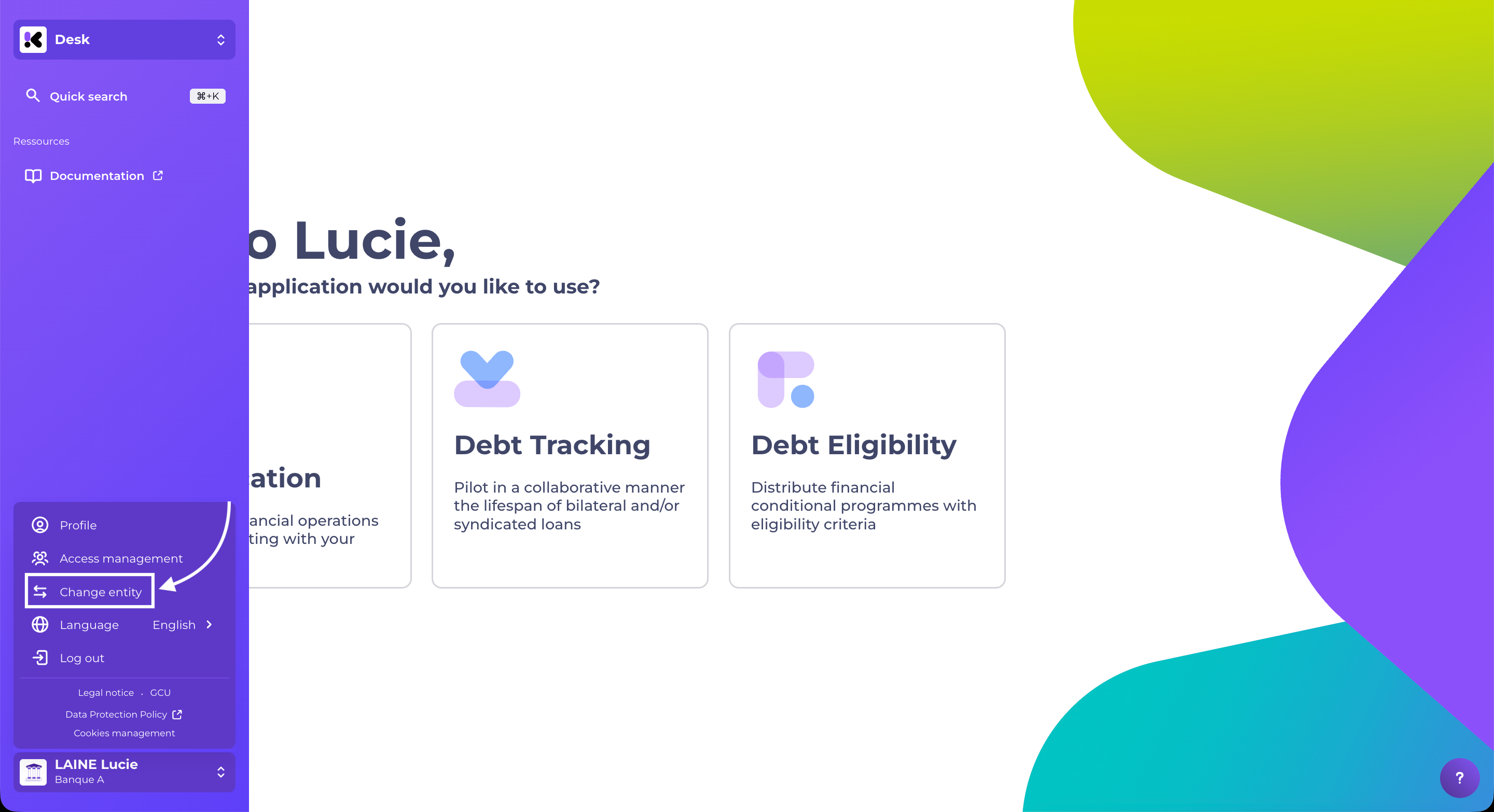
From the user menu, the "Switch entity" entry opens Quick Search with the "My entities" filter active and the other categories hidden. It only appears for accounts attached to more than one entity.
Search for your entity by name, then select it: it becomes the active entity without leaving the current page.