
IntroductionYour transaction contacts receive automatic notifications based on events occurring in your In addition, you can send customised notifications to your stakeholders at any time from the To personalise your communications, you can select your recipients:
|
Content |
1. Send a personalised notification from the dataroom
From the dataroom tab, you can send customised notifications to your stakeholders by sharing one or more documents available in your space.
-
Go to the dataroom tab of the relevant transaction.
-
Select the file(s) and/or folder(s) relevant to your needs. If the required files are not yet available in the dataroom, import them.
-
Click on “Send an email”.
-
Select the notification recipients: either a stakeholder group or one or more specific entities among the lenders, borrowers or agents involved in the transaction.
(For example, to send a notification to borrower contacts, select the shared Agent / Customer directory.) -
Write your message, then click “Send”.
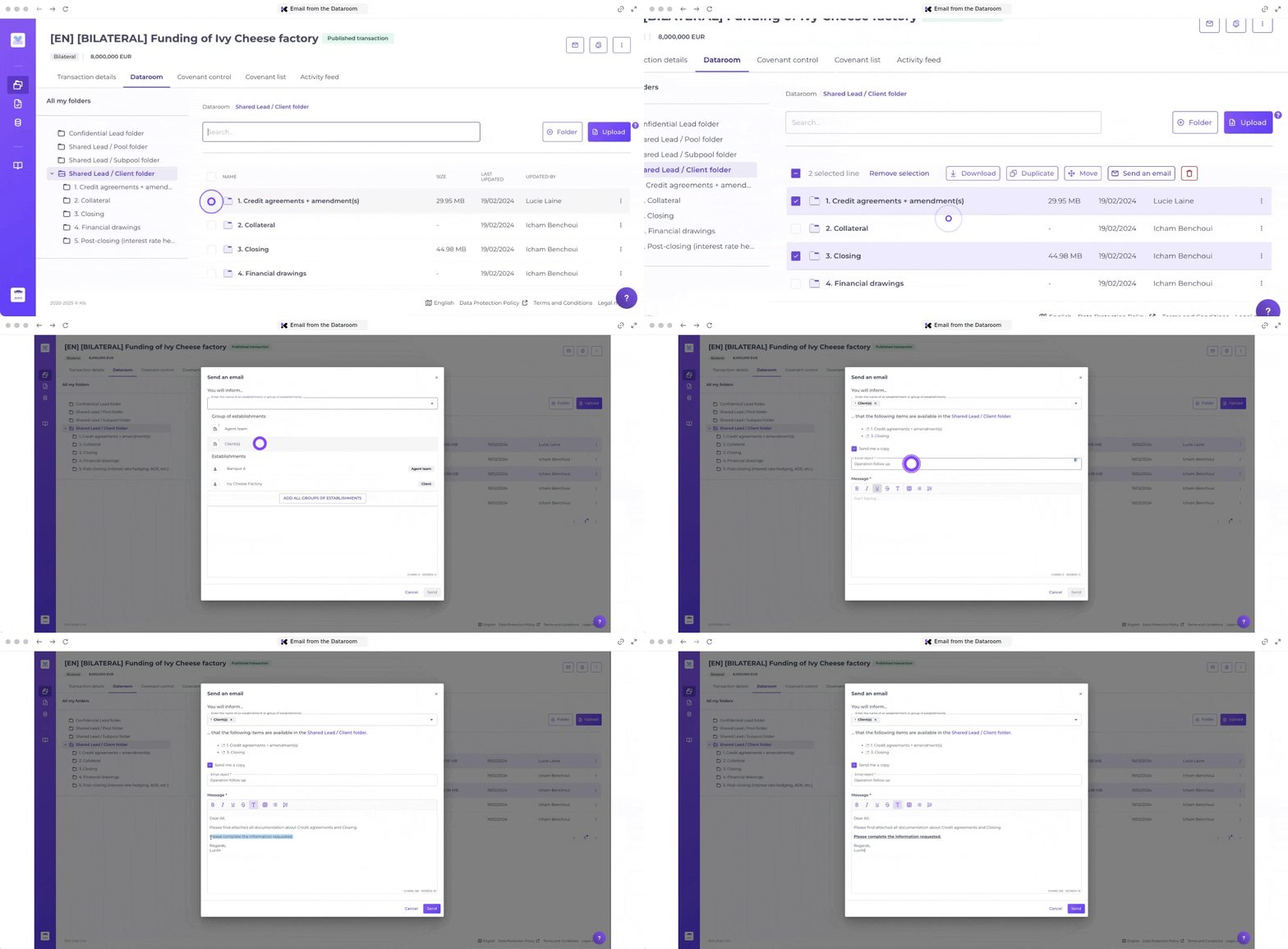
Once the notification has been sent, the contacts recorded in your transaction will immediately receive an email notification. See the article on access management.
Example of an email notification:
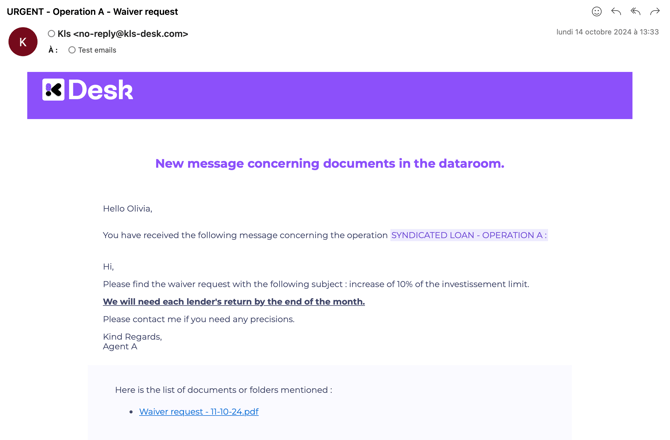
The following information is included in the email notification:
- The subject of email.
- The name of the transaction within the body of the email.
- Details of your message.
- A clickable link to the file(s) and/or directory(ies). By clicking the link, your contact will be redirected to the relevant location within dataroom.
- The automatic dataroom notification provides a summary of all files added by the operation manager the previous day, even if a personalised notification has already been sent for some of them. You have full control over the settings for automatic notifications.
- Only the operation manager can send a customised notification from Kls Desk. Stakeholders may use their own external email system to reply.
Your personalised notification is recorded in the operation's Activity feed. See the article on the activity feed.
To access the information, open the corresponding tab:
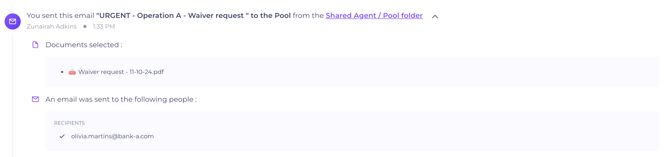
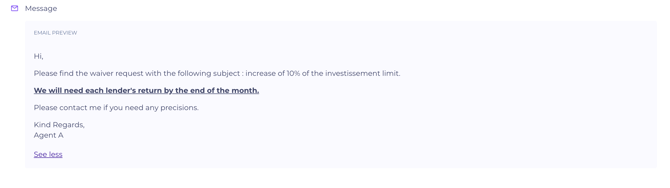
You will find the following details:
- Clickable link to the relevant file(s) and/or directory(ies).
- List of recipients.
- Preview of the notification content.
💡 Filter by the “Sent emails” activity type to view all notifications sent to your stakeholders (both automatic and personalised).
2. Send a personalised notification from Covenant control
From the Covenant Control tab, you can send personalised notifications relating to one or more controls.
Example: I wish to send a personalised notification to lenders.
-
Go to the Covenant Control tab of the relevant transaction.
-
Select the control(s) you require. The covenant must first be created in the Covenant list tab and published for the related control to appear on this page. See article on how to set up covenants.
-
Click on “Send an email”.
-
Select the recipients of the notification: either your entire banking pool or one or more specific entities among the lenders.
-
Write your message, then click “Send”.
.gif?width=670&height=366&name=Kls-platform%20(4).gif)
Once the notification has been sent, the contacts recorded in your transaction will immediately receive an email notification. See the article on access management.
Example of an email notification:
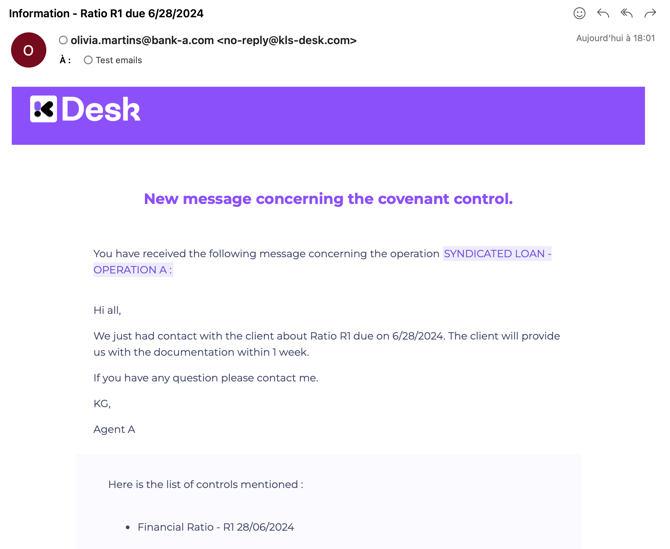
The following details are included in the email notification:
- The subject of the email.
- The name of the transaction within the body of the email.
- Details of your message.
- A clickable link to the file(s) and/or directory(ies). By clicking the link, your contact will be redirected to the relevant dataroom location.
Only members of the operation manager teams may send a personalised notification from Kls Desk. Stakeholders will use their external email systems in reply.
Your personalised notification is recorded in the transaction Activity feed. See the article on the activity feed.
To review the information, select the relevant tab:
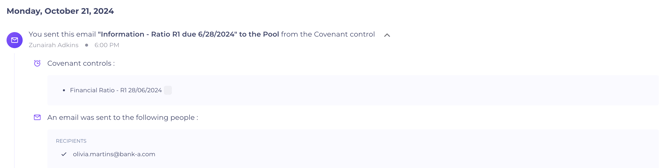
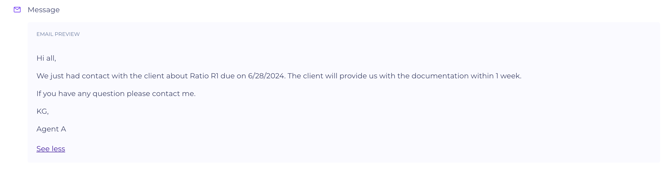
You will find the following details:
- Clickable link to the relevant file(s) and/or directory(ies).
- List of recipients.
- Preview of the notification content.
💡 Filter by the “Sent emails” activity type to see all notifications sent to your stakeholders (both automatic and personalised).
💡 Lenders only access the controls shared by the operation manager (i.e., with a validated status or a noted breach). However, they receive customised notifications regardless of the control's status. It is therefore recommended to use this feature to provide lenders with information regarding controls that have not yet been shared.
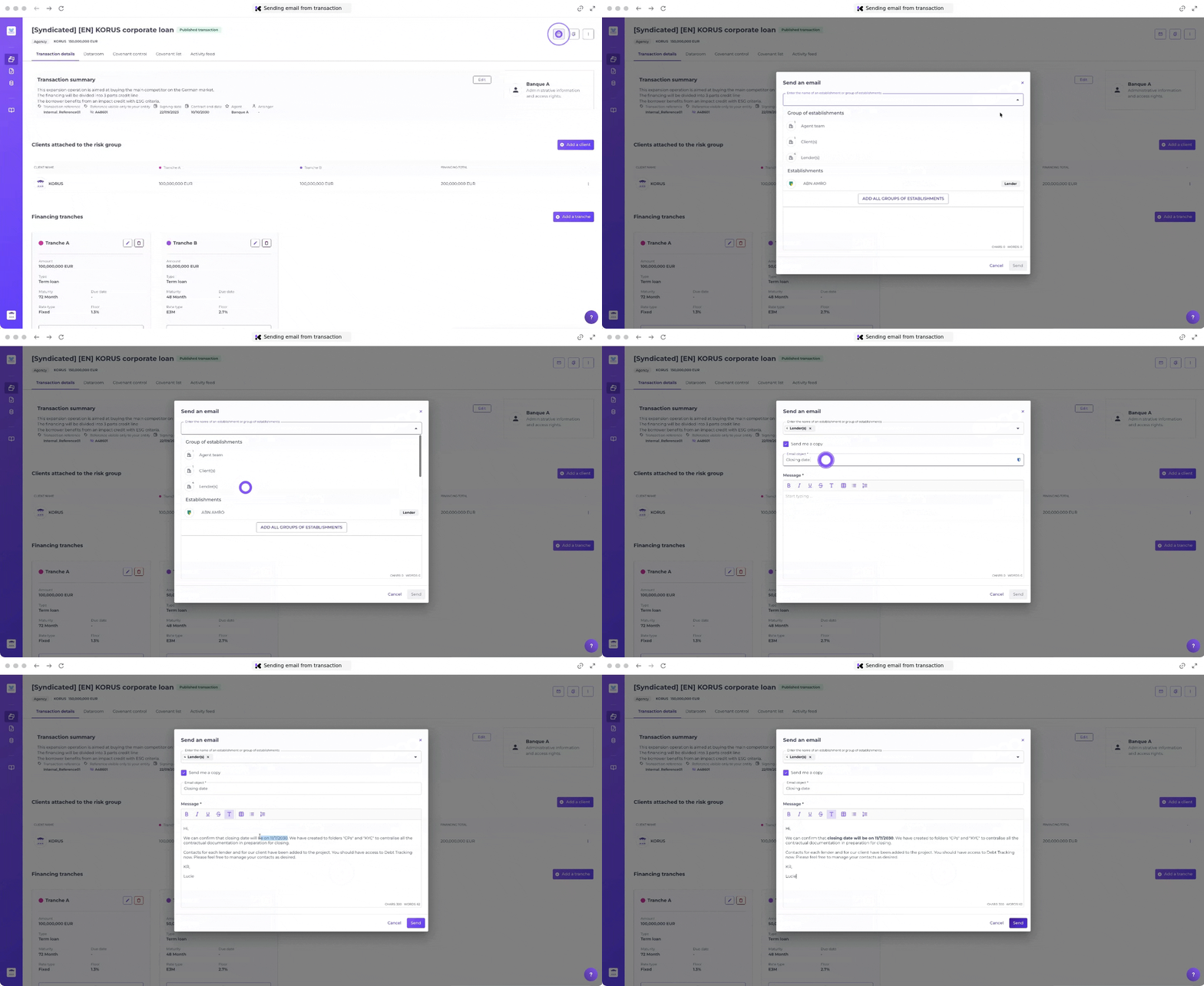
3. Send personalised notification from the transaction
From each transaction, you can send a personalised notification to share general information with your stakeholders. This sending method is recommended when your message does not relate specifically to a dataroom item or a covenant.
-
Go to the relevant transaction.
-
Click on “Send an email”.
-
Select the recipients of the notification: either a stakeholder group or one or more specific entities among the lenders, borrowers or agents involved in the transaction.
-
Write your message, then click “Send”.
Example of an email notification:
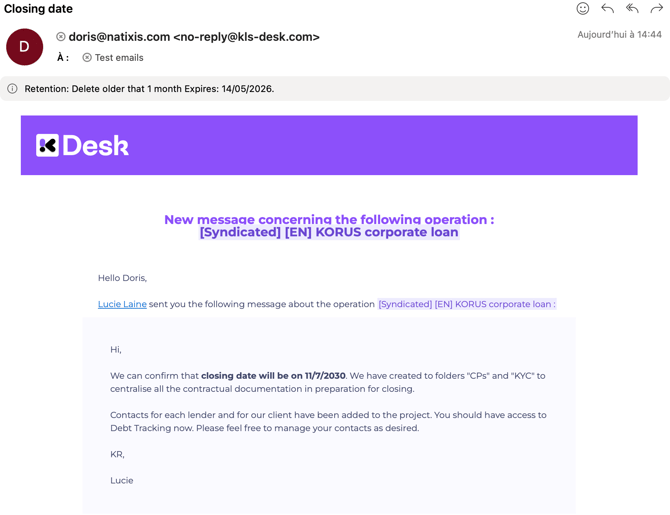
The following details are included in the email notification:
- The subject of the email
- The name of the transaction within the body of the email.
- Details of your message.
- A clickable link to redirected to your transaction.
Your personalised notification is recorded in the transaction Activity feed. See the article on the activity feed.
To review the information, select the relevant tab:
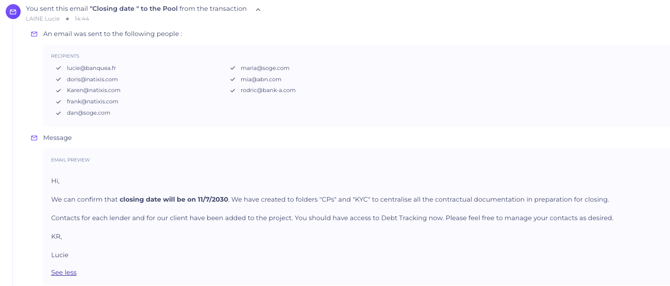
You will find the following details:
- List of recipients.
- Preview of the notification content.