
This guide trains distributor users on Debt Eligibility. For any question about programme setup, contact the programme manager or the programme reference directly.
Introduction
The Debt Eligibility app streamlines the management and distribution of guarantee, subsidy, or conditional loan programmes to a defined network of distributors.
The tool relies on a workflow involving two participants:
- The programme manager creates the programme, sets eligibility criteria, accepts reservation requests, produces reporting, and monitors credit events related to each documented loan (events, defaults, guarantee calls).
- The distributor distributes the programme within their area by advising their customer portfolio. They use Kls to submit reservation requests and verify whether a customer's requirements match the programme's eligibility criteria. They then report the progression of discussions to the programme manager up to documentation, and notify them of any significant events — all tracked in Kls.
This guide details, step by step, the process a distributor follows to turn a reservation request into a documented loan.
1. Use your dashboard
The dashboard is your home page in Debt Eligibility. It brings together the files and financing objects that require your attention, along with the latest activity recorded by your programme manager on your files.
Search for a file
The search bar at the top of the dashboard gives you quick access to your files. Enter a file name to be redirected to the corresponding filtered list.
Actions required
This section groups the files and financing objects that require your attention. Each card is clickable and redirects to the corresponding filtered list.
The Reservation & Eligibility section displays three indicators:
- Expiring soon — files whose expiry date falls within the next 7 days.
- Awaiting information — files with the status "Awaiting additional information" where the programme manager is waiting for details from you.
- Reserve to complete — files with the status "Conditionally accepted" for which the company information (registration number, NACE code, incorporation date) still needs to be provided.
- To complete — files with the status "Draft" to finalise and submit.
The Financing object documentation section highlights two groups of financing objects awaiting documentation:
- Financing objects in files with the status "Accepted" — the file has been accepted by the programme manager and its financing objects are ready to be documented.
- Financing objects in files with the status "Contractualised" or "Validated" — at least one financing object in the file has already been documented, but others remain pending. These objects are flagged with a warning indicator to prevent them from being overlooked.
Latest activity on your files
This activity feed displays the recent actions taken by your programme manager on your files. Four types of events are shown:
- Acceptance of a file
- Decline of a file
- Validation of a financing object
- Decline of a financing object
Each event includes a link to the relevant file or financing object. Use the filter to adjust the display period: since your last login, last week, last 2 weeks, or last month. By default, activity is shown since your last login.
2. Submit a reservation request
To submit a reservation request for a programme, two conditions must be met:
- You have access to your entity's Kls Desk with the rights to use Debt Eligibility
- Your entity is designated as a "Distributor" by a programme manager on a Debt Eligibility programme
Once both conditions are met, you access the Debt Eligibility app from your Kls workspace.
The list of programmes you can distribute is available on your dashboard. It displays the key information: programme status (Distributed or Paused), distribution dates, available amount in the envelope, and more.
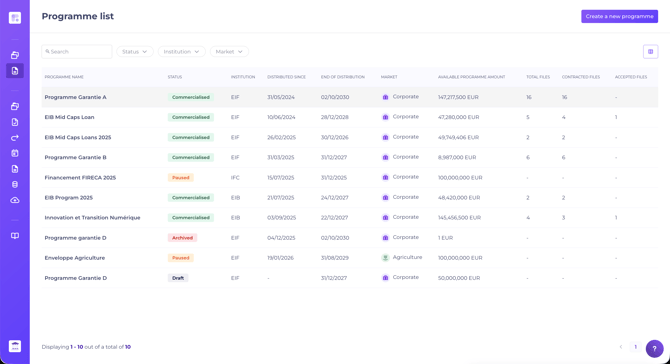
For more details, click on a programme.
A dashboard displays the real-time consumption of the programme's envelope. It helps you monitor the amounts still available for distribution and anticipate potential customer requests.
The programme manager provides access to a Dataroom containing the programme documentation. They also share the contact details of programme references and explain the distribution process to help you understand the key stages.
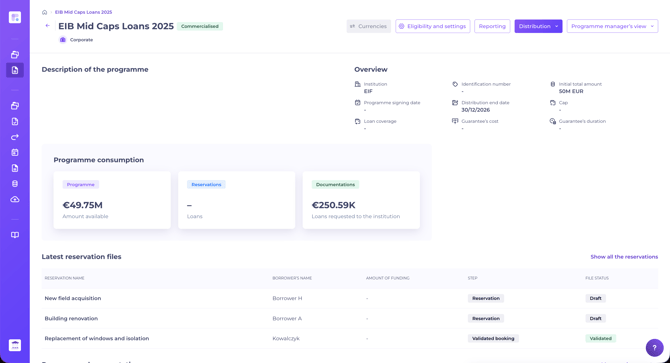
To submit a request, click on "New reservation". A window prompts you to complete the details required.
Once validated, these details create a file. The file is the central space where all the information transits: your reservation request, the documentation of your financing objects, the loan monitoring, the comments from the programme manager, and the Dataroom.
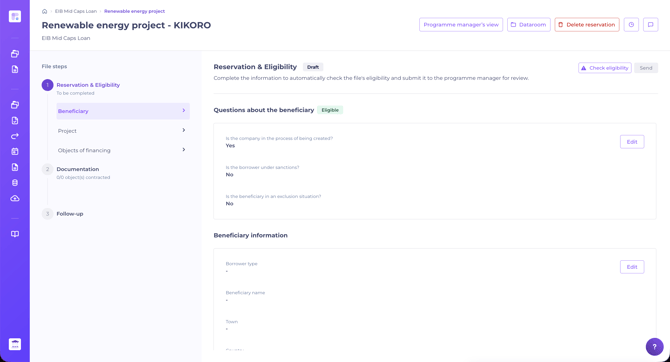
Your file is in Draft status. To move it forward, complete the eligibility form set up by the programme manager, then submit it.
The Kls eligibility engine tells you in real time whether your customer is eligible for the programme, so you don't spend time on ineligible files. Any ineligible response is flagged directly.
Each file has its own Dataroom, accessible to the programme manager, where you upload the required supporting documents.
When all conditions are met, submit your request to the programme manager for acceptance. All data entered is retained for the next steps.
Once submitted, the request is handed over to the programme manager. They can:
- Decline your request, which automatically archives the file.
- Put your request on hold, in three cases:
- Awaiting institution response, if a discussion with the institution is required
- Request for additional information, if additional information is needed from you
- Send back as a draft, giving you the opportunity to update your request
- Accept your request, allowing you to move on to the next step: documentation.
Your request is conditionally accepted
The "Conditionally accepted" status lets you keep advising your customer commercially while their company is being incorporated. This status only gives access to step 1: documentation stays locked until your file reaches the "Accepted" status.
A new entry, "Company information", marked with a warning icon, appears in your file. An orange banner there recaps the latest reason posted by the programme manager.
As soon as you have your customer's details, review and complete the "Company information" block. The fields shown depend on the programme's configuration.
Once your details are saved, the "Resubmit request" button becomes active. Your file returns to "Submitted" status for a new review by the programme manager, who can again conditionally accept it — with no limit on the number of round trips — put it on hold, decline it, or accept it definitively.
Until the programme manager takes a new decision, the "Company information" block stays read-only on your side.
-
Find all your files awaiting completion in the "Reserve to complete" indicator of the Reservation & Eligibility section of your dashboard.
-
Each action triggers an email notification to alert you of the change in your file's status.
-
A reservation request has a lifespan. If inactive, the request is automatically cancelled. This period is set by the programme manager, and the expiry date is shown on your file. You can extend this period once per request.
3. Reply to a comment from the programme manager
If the programme manager adds a comment on your file, you can reply at any time from the dedicated area of the file.
4. Document financing objects
Once your request is accepted by the programme manager, your file moves to step 2: Documentation. This step lets you share all the information related to the loan granted to your customer.
Documentation takes place for each financing object. Each financing object follows its own lifecycle, independent of the file status.
For each financing object, you can:
- Document the object by entering its documentation information. The object moves to Documented status.
- Abandon the object. The object moves to Abandoned status and can no longer be documented.
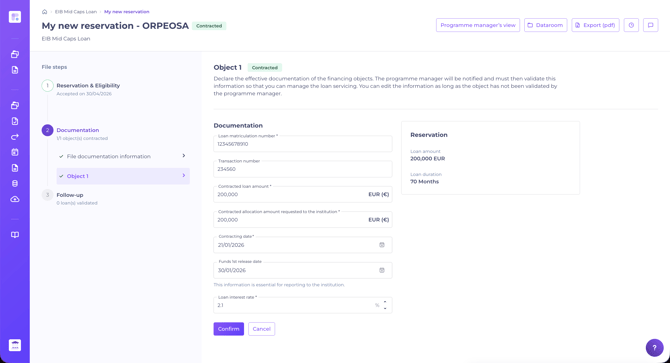
Once a financing object is documented, the programme manager can:
- Cancel the documentation (the object returns to Awaiting documentation status)
- Validate the financing object (Validated status)
- Decline the financing object (Declined status, final)
Your file status evolves automatically based on the statuses of its financing objects:
- At least one object documented → file is Contractualised
- At least one object validated → file is Validated
If your file contains several financing objects, each one follows its own lifecycle. Your dashboard highlights financing objects still awaiting documentation in files with the status "Contractualised" or "Validated", to prevent any object from being overlooked once others have been documented.
If the button to submit the contract is disabled, this indicates that the file’s deadline has passed. The platform blocks any submission until this deadline has been updated.
To resolve this, the user must:
1. Submit a request for an extension directly from the relevant file.
2. Wait for this request to be submitted to the programme manager for approval.
3. Once the extension has been granted, the new deadline is updated and the contract can be submitted again.
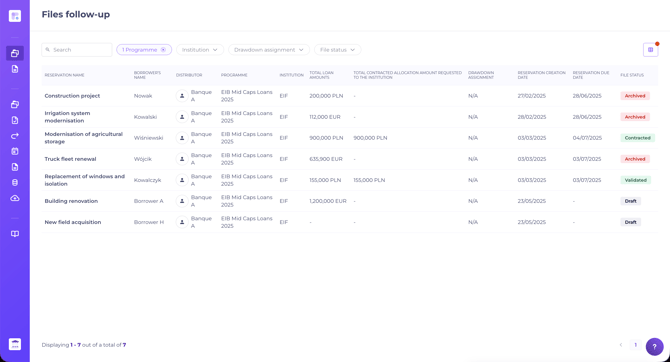
You can find all your files, sorted by status, in the "Follow-up" tab of the left-hand menu.
5. Manage loan life events
For each financing object in Validated status, you can log any significant events related to the credit: early repayment, refinancing, default, and more. You can also submit a guarantee call.
For further information, see our dedicated guide: Manage credit events as a distributor.
6. Export a file as a PDF
You can generate a PDF document summarising all the information of your file, depending on its progress (eligibility questionnaire responses, documentation details, and more).
Open the file of your choice in Debt Eligibility. The "Export (PDF)" button is visible at the top right of the screen. Click it to download the PDF.
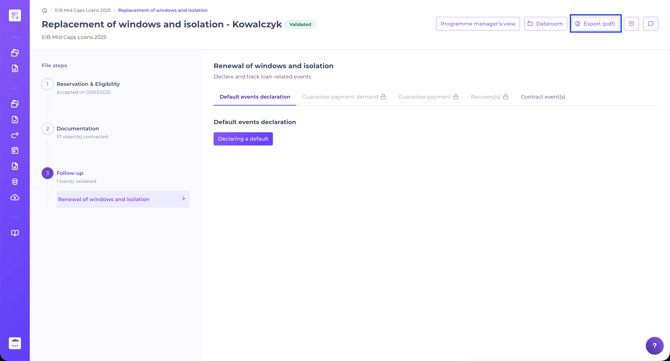
The export is not available for files in Draft or Archived status.
This option lets you collect the information of a file to store it elsewhere according to your needs (internal document management system, other department files, and so on).
7. Extract data for your reporting
The export module lets you extract your file data in Excel format, for any analysis or reporting need.
From a programme, click on "Reporting" at the top right. Create export templates by selecting the fields you want. Templates are saved and reusable.
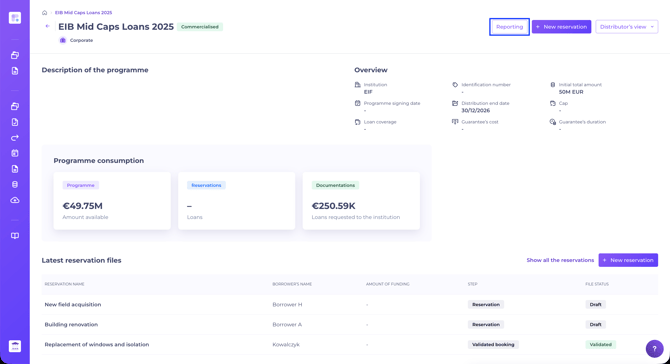
Launch the export and download your Excel file.